
Uncategorised (5)
Here is a basic rundown of how to create your very own YouTube channel.
- Go to http://www.youtube.com and in the top right hand corner click the blue 'Sign In' button.
- If you already have a Google account, you can go ahead and sign in with your Login Details. If you don't have a Google account, you'll have to create one before proceeding with creating a channel.
- Once you've created your account and logged into your Google account, you should be back on YouTube again.
- Once there, click on your e-mail address in the top right-hand corner and choose 'My Channel'.
- You'll have to go through a quick verification process just to prove that you are who you say you are.
- Once the verification process is finished, you'll come to a page that allows you to setup how your YouTube channel appears.
- You can leave things as they are or change them to your liking. You can also add a business name to your account as well, such as 'Victory Churches International'.
- That's it, you've created your very own YouTube channel.
If you'd like to setup live streaming, you'll have to follow a few additional steps before you're up and running. Here is a quick walkthrough on how to activate live streaming on your YouTube channel.
- Start by logging into your YouTube channel if you havent already.
- In the top right corner, click on your name or your business name and select 'Settings' from the dropdown menu.
- Once there, you'll need to click on 'View additional features' which will take you to a Features page.
- At the very bottom of this page is a section called Live events and to the right of it there should be a button labeled 'Enable'. You can go ahead and click it.
- You may have to go through another verification process at this point.
- After the verification process is completed, you'll have to agree to the terms of using your YouTube channel for Live Streaming.
- That's it, you now have your very own YouTube channel that is also capable of live streaming.
Here is a basic rundown of how videos are added to the library.
- If you don't already have one, you must first create a YouTube or Vimeo channel. This is where you will upload all your videos. If you want to create catagories for your videos on YouTube or Vimeo it won't make a difference to the library here at VictoryTV.
- Once you have created your YouTube or Vimeo channel and uploaded your videos you'll want to connect them to VictoryTV by copying the video URL. On YouTube this is as simple as right clicking on the video thumbnail and choosing 'Copy Link Location'. On Vimeo you should be able to go to your video and copy the link from the address bar. This link should end up looking something like this:
YouTube: http://www.youtube.com/watch?v=W6RNJ6HDTpU
Vimeo: http://vimeo.com/135177259
- Once you've copied the video URL, you will want to login to your account at VictoryTV.

- Once logged in, you will see an additional menu item called 'Admin'.

- Click the little down arrow to see the following items in the admin dropdown menu.
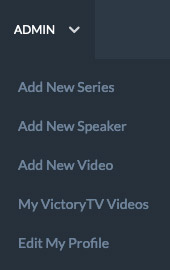
- The order you click on the add buttons is important but dont worry, if you just clicked 'Add New Video' its okay, we have made a redundant menu that will allow you to first add a series or speaker if necessary.

-
- Example: You cannot properly fill out the details for a new video without first adding a speaker (Provided that speaker hasn't already been created). If your video is a part of a series, you will also have to add a series before you add a video.
- One small note regarding the series titles. In occasional instances you might find that another Ministry / Victory Church has already added a series with the same title as you wish to create. For that reason we ask that you follow this format when creating a new series.
Series Name | Ministry Name - (The ministry name is your Victory Church name).
e.g. Church Planting at its Finest | Victory Churches International - You can add a full description of the series as well, but if you dont have one, just copy and paste the Series Name | Ministry / Victory Church Name info into the description area.
-
- When creating a video, BEFORE filling in any details, we recommend that you go straight to the Video tab first.

- When you're on the Video tab, you can click the select button.

- Once the window pops up, you can click the Video Link tab (You can ignore the rest of the tabs.) This is where you'll put the link that you copied from earlier.

- Then click Get Info.

- Once you receive the confirmation message, you can then click Insert.


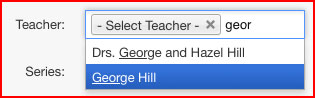
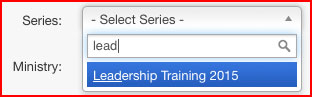
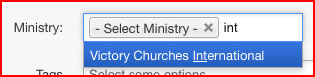
- Now when you go back to the Message details tab you will see that some of the details are already filled out for you based on the information that was pulled directly from YouTube or Vimeo. Enter some additional information such as the date the video was recorded, the speaker that did the message, the series if it was a part of a series, and the ministry (Which is your church name)

-
- Sometimes (as you can see illustrated above) it's easier of you start typing what you're looking for so that the dropdown list becomes more precise.
-
- Once you're done all of that you are ready to press "Save & Close".
- Congratulations! Now your video will be in the VictoryTV library.
What is VictoryTV?
 VictoryTV® was founded with our worldwide family in mind. We wanted to provide a single location for Victory Partners from around the world to share their video content. This also translates into an easy to find video address for all of our viewers and friends (victoryint.tv).
Is it going to cost me anything to become a Partner of VictoryTV?
No, VictoryTV® is a free service hosted by Victory Churches International. It will not cost you anything to either partner with us, or to access our video library. We have inplemented a unique and simple process of adding videos to the library here at victoryint.tv that has enabled us to offer this library subscription free. Again, our mandate is to provide christian video's on a variety of topics to our entire Victory family and friends worldwide.
How do I become a Partner of VictoryTV?
You can become a Partner of VictoryTV® by clicking here and filling in the registration form. Your information will be sent directly to one of our Administrators for approval and you'll be up and running in no time.
Where is the best place for me to upload my videos?
VictoryTV® currently supports videos uploaded to either YouTube or Vimeo. You can easily set up a free basic account with either video service.
A basic instructional page has been created to walk you through the process of adding a video here at tv.victoryint.org
If you need a hand setting up your own YouTube channel, we've setup an instructional page to guide you through the process of creating your own YouTube channel.
I'm having trouble getting my videos to show up. What am I doing wrong?
It sounds like you've probably pasted a link type that we just do not support quite yet. We are constantly working on more ways to help our partners have a streamlined experience here on VictoryTV®. Without going into detail on all the possibilities, lets just say the safest way for you to post your videos on VictoryTV® is by making sure your links look like just like the ones below:
YouTube: http://www.youtube.com/watch?v=(Unique video code, such as W6RNJ6HDTpU)
Vimeo: http://vimeo.com/(Unique video code, such as 91743524)